
A team is the container for groups, databases, tokens and invitations. Almost every object in MylibSQLAdmin belongs to exactly one team, and policies compare that team with your membership before they allow anything.
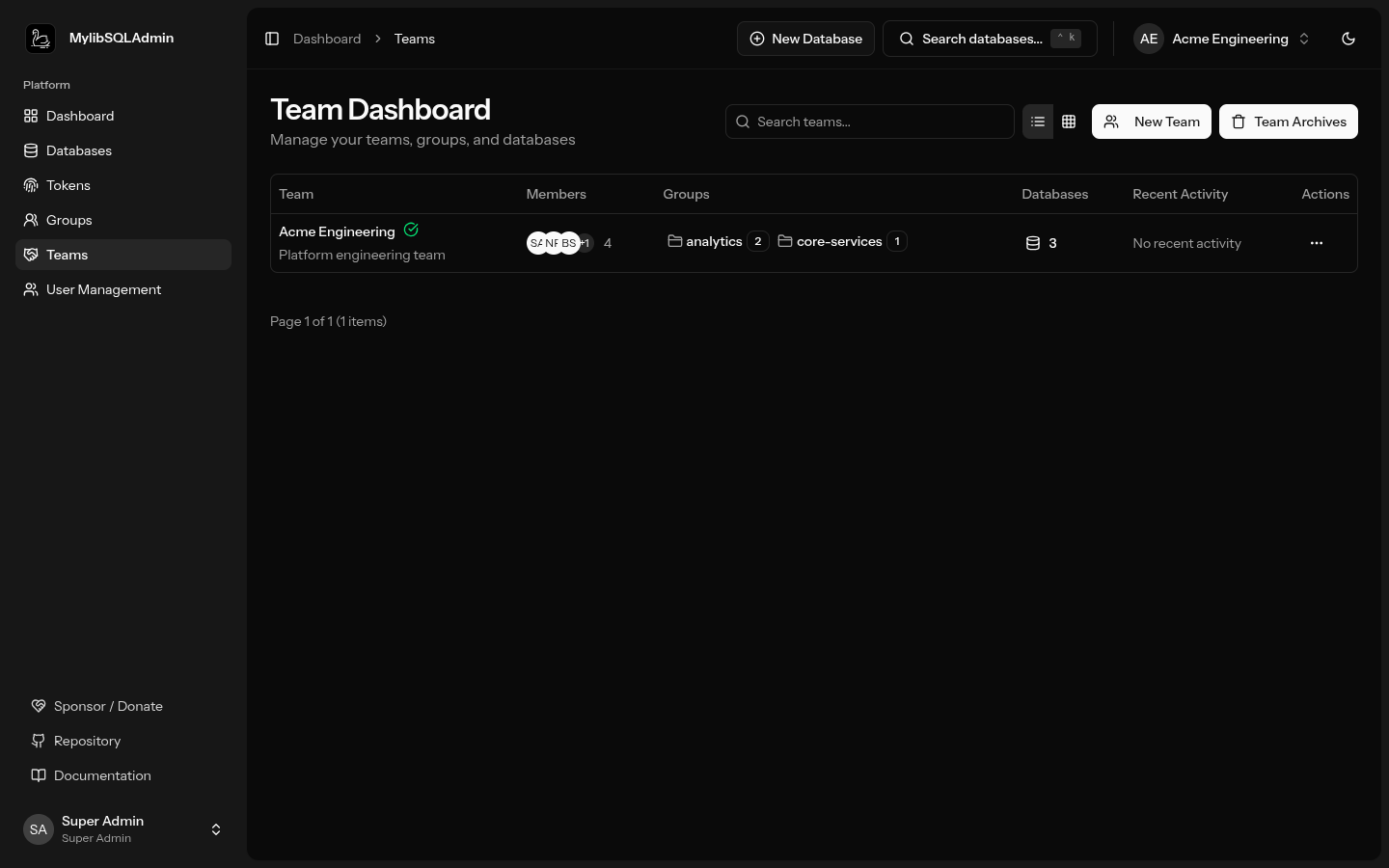
Create a team
Teams → New Team. Give it a name and a description. Only a Super Admin can create or delete a team; a Team Manager can update the team they belong to.
The description appears in the team switcher, which is the control that scopes every list in the app to the current team.
Add members
Open the team’s Manage members action.
- Enter the invitee’s email address.
- Choose their team permission level.
- Send the invitation.
The invitation is bound to that email address. If someone else opens the link, acceptance fails — the invitee must register or sign in with the invited address.
Pending invitations are visible from the team row. From there you can resend an invitation, revoke it, or remove an existing member.
Team permission levels
Each membership carries a level. It is a label used inside the team context and for the invitation flow:
| Level | Typical use |
|---|---|
| Super Admin | Platform owners who belong to the team |
| Team Manager | The person accountable for the team’s structure |
| Database Maintainer | The person on call for the team’s databases |
| Member | Everyone who only needs to query |
The team level is not a second grant of permissions. A user whose global role is Member does not gain Manager abilities because their team level says Team Manager. Assign the global role deliberately from User Management.
The team switcher
The switcher in the sidebar changes the current team. Every scoped list — databases, tokens, groups — follows it. If a database “disappeared”, check the switcher before checking permissions: you may simply be looking at another team.
Remove someone
Removing a member ends their access to the team’s objects immediately. It does not delete their user account; they keep their global role and any other team memberships. To remove them from the platform entirely, archive the user from User Management (Super Admin).
An inactive user loses access immediately, including any session in progress. Removing a team member is narrower: it only ends that team's scope.